
Overview
In the reporting section, you can create reports of your use case configuration, risk assessment, and continuous qualification. The reporting feature provides comprehensive documentation for compliance, audit, and analysis purposes.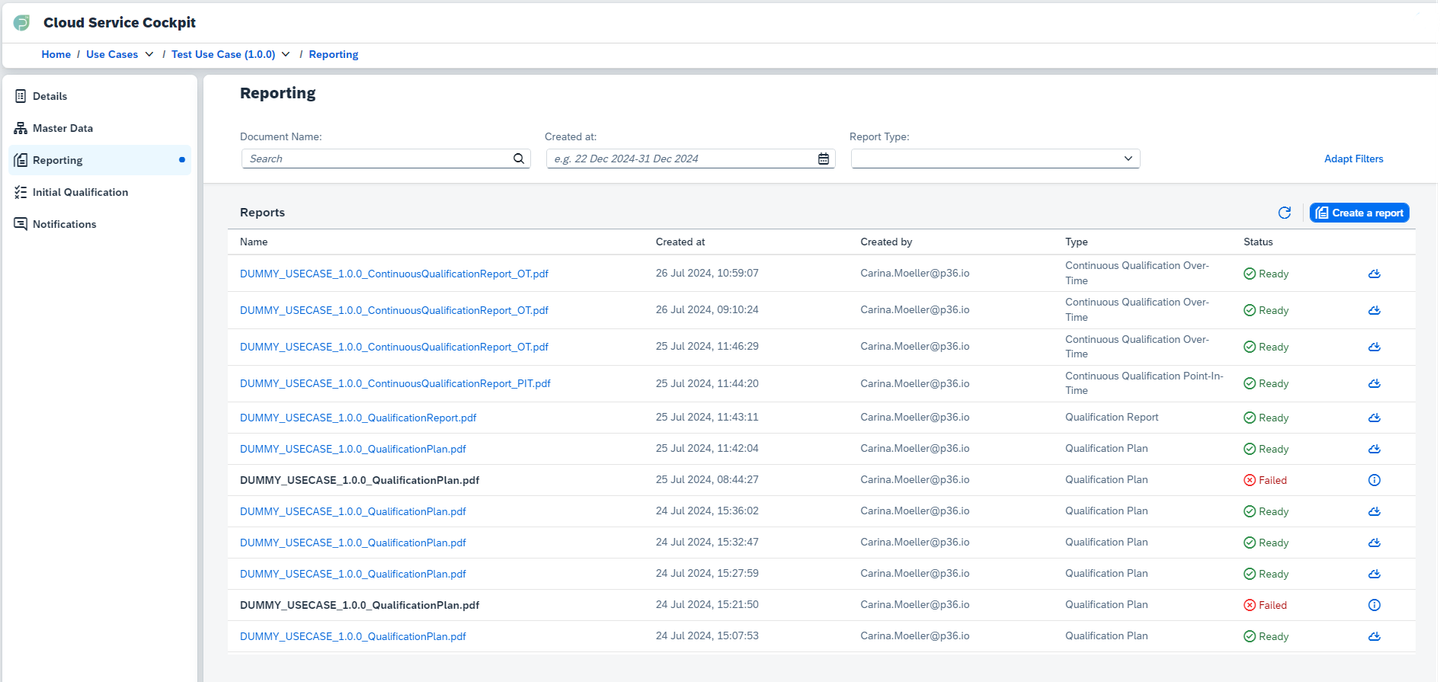
Reports can be customized based on your use case status and specific
requirements, with support for various report types and formats.
Report Management Interface
You’ll find a table view of all generated reports with detailed information:Report Information Displayed
- Name: Custom name assigned to the report
- Created at: When the report was generated
- Created By: User who initiated the report generation
- Type: Type of report (Assessment, Initial Qualification, etc.)
- Status: Current report generation status
- Actions: Download, Delete
View Reports
Browse all generated reports in a comprehensive table view
Download Reports
Download completed reports directly from the list view
Track Status
Monitor report generation progress and status
Report Types
The available report types depend on your use case status and configuration:- Assessment Documents
- Initial Service Qualification Report
- Point-in-Time Reports
- Over-Time Reports
Assessment Reports
Availability: Can be created in all use case statusesContent:- Use case configuration overview
- Service assignments and details
- Risk assessment results
- Requirement compliance status
- Master data structure
- Compliance documentation
- Internal audits
- Configuration reviews
- Stakeholder reporting
Assessment documents provide a snapshot of your use case configuration and
are useful for documentation and compliance purposes.
Manual Report Generation Process
1
Access Reporting
Navigate to the use case and select “Reporting” from the left menu
2
Create New Report
Click the “Create a Report” button on the right side of the screen
3
Select Report Type
Choose the appropriate report type based on your use case status and needs
4
Configure Options
Set report-specific options like timeframes, evidence inclusion, and naming
5
Review and Submit
Review your configuration and submit the report generation request
Scheduled Report Generation Process
Only Over-Time Reports can be scheduled for automatic generation at regular intervals. This allows you to maintain up-to-date documentation without manual intervention.
Report Status Management
Status Types
Handling Failed Reports
If a report generation fails:1
Check Error Details
Click the error icon to view specific failure information
2
Review Configuration
Verify that all settings were correct and data is available
3
Retry Generation
Attempt to regenerate the report after addressing issues
4
Contact Support
If issues persist, contact support with error details
Accessing and Downloading Reports
Viewing Reports
1
Locate Report
Find the completed report in the reports list (status: “Ready”)
2
Open Report
Click on the report entry to open it in a new window
3
Review Content
Browse through the report sections and data
4
Download if Needed
Use the ‘Download’ button in the bottom right corner
Generating reports may take some time depending on the complexity and amount
of evidences included. Please be patient while the system processes your
request.
Direct Download
For quick access:- Use the download icon directly from the reports list
- Reports are typically available in PDF format
Search and Filter Options
Available Filters:
- Document Name: Filter by report name
- Created at: Filter by date of report creation
Custom Report Templates
Your p36 Solution Consultant will support you with the setup of custom
reporting templates tailored to your specific documentation requirements.
Template Features:
- Custom Branding: Include your organization’s logos and styling
- Specific Sections: Focus on particular aspects of qualification
- Compliance Formats: Meet specific regulatory or industry standards
- Data Selection: Include only relevant data points for your needs
Best Practices
Regular Reporting
Schedule regular report generation to maintain up-to-date documentation
Naming Conventions
Use consistent naming conventions for easy report identification
Archive Strategy
Develop a strategy for archiving and managing historical reports
Compliance and Audit Support
Reports generated by the CSQ Platform are designed to support:- Regulatory Compliance: Meet industry-specific reporting requirements
- Internal Audits: Provide comprehensive documentation for internal reviews
- External Audits: Supply detailed evidence for external auditors
- Continuous Improvement: Track performance trends and improvement areas
Next Steps
Notifications
Configure notifications to complement your reports
Initial Qualification
Run initial qualification to enable qualification reports