
Overview
In the Configuration area, you can view the services added to the use case, along with the underlying features and their risk assessment. As an Admin user or Use Case Designer, you can edit them, assign new services to the use case, or delete services that are no longer relevant.The tree structure provides a hierarchical view: Use Case → Services →
Features
Configuration Structure
Managing Services
Adding a Service
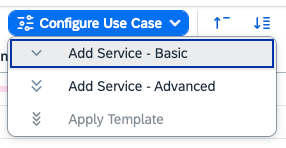
Services can be added to your use case using one of the following methods:- Basic Wizard: Select from a predefined list of available services. No guided configuration is required.
- Advanced Wizard: Configure a new service and its assigned features through a guided wizard.
- Apply Template: Use your templates, created on platform level, to apply a predefined set of services and features to your use case.
To add a Service to your use case, you must be in Draft status.
Basic Wizard
1
Open Basic Wizard
Click the Configure Use Case button and select Add Service - Basic
from the dropdown.
2
Select Service
Choose a service from the predefined list of available services.
3
Define Intended Use
Specify the intended use of the service, which will form the basis for its
risk assessment. This can be provided later if not immediately available.
However, the immediate activation of the use case will not be possible
without this information.
4
Select General Impact
Choose the general impact of the service on your use case, which will
influence the risk assessment.
5
Confirm Addition
Click Create to include the service in your use case.
The Basic Wizard will not assign an Instance to the Service. Without an
Instance, the service cannot be qualified as Features cannot be assigned to
it. You can assign a Testing Instance later in the service details. Learn more
about Assigning Instances.
Advanced Wizard (Recommended)
- Select Service
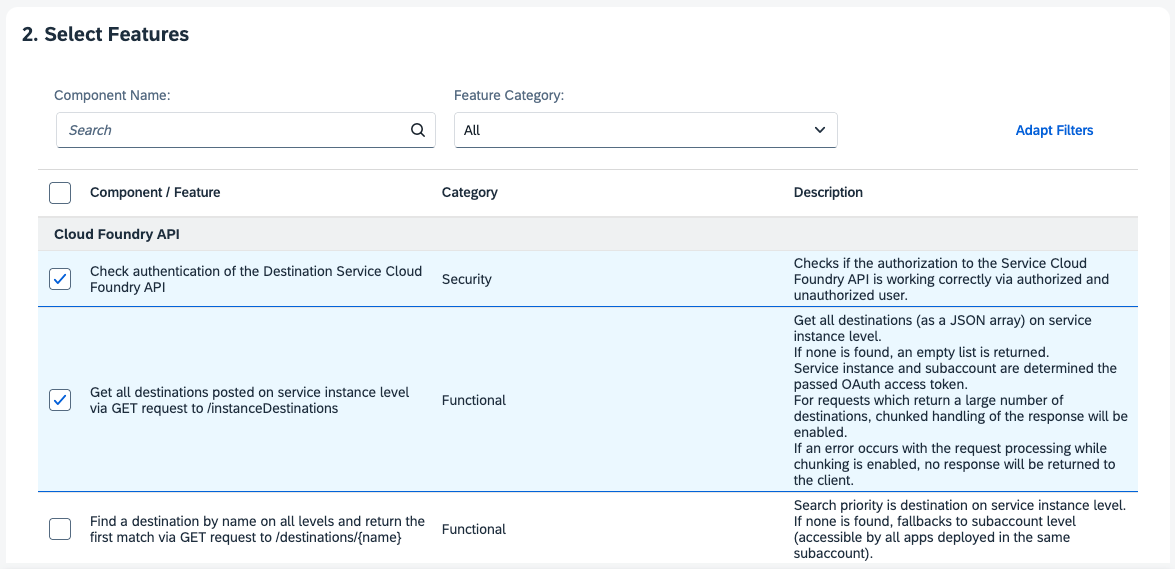
- Select Features
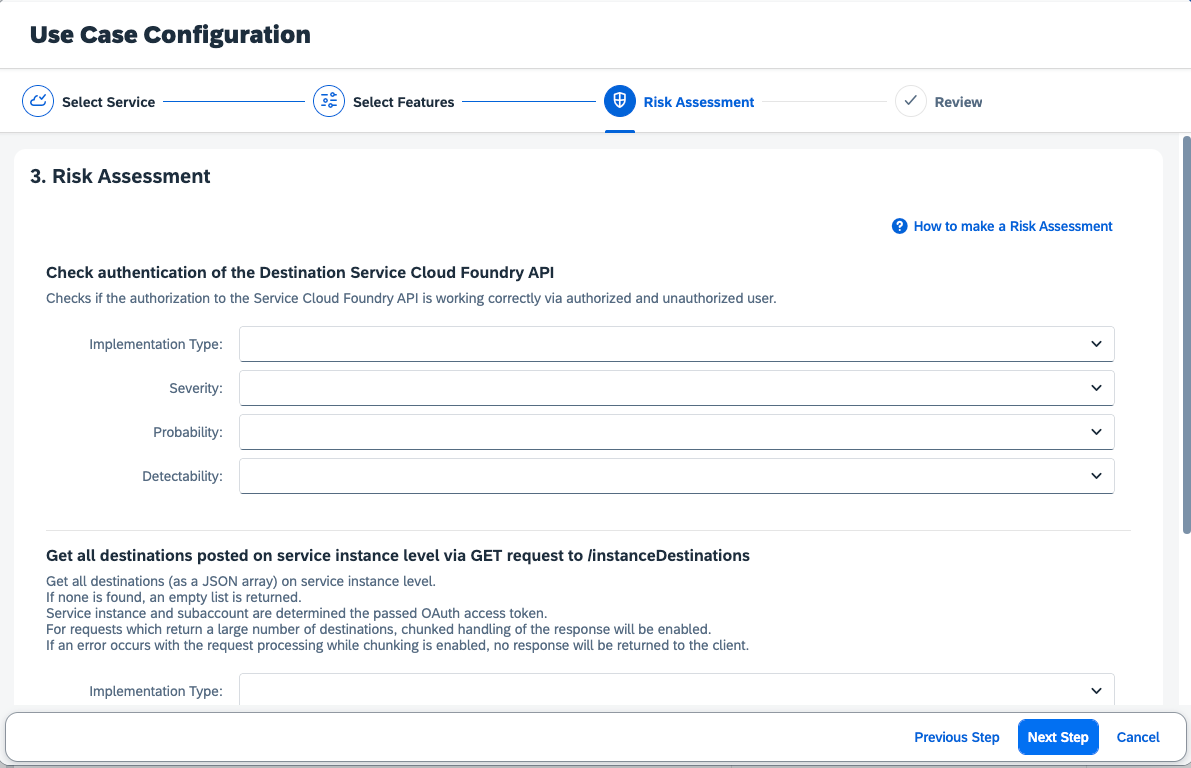
- Risk Assessment
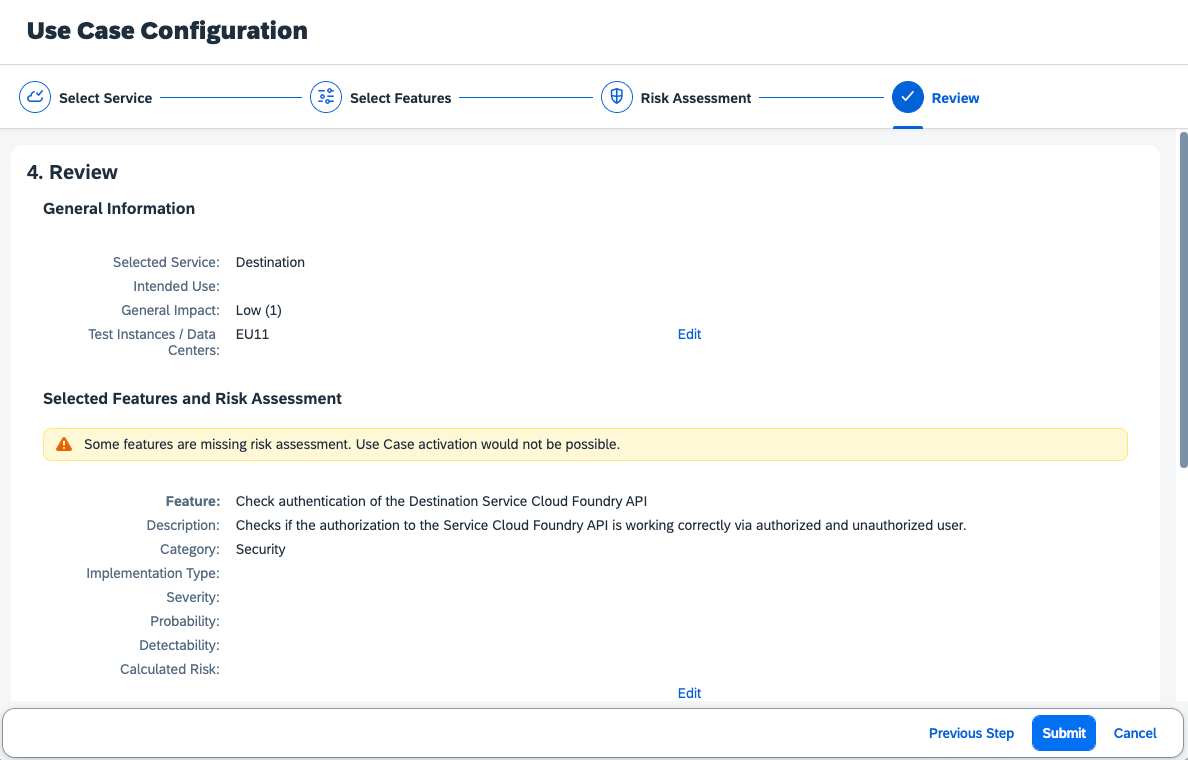
- Review
1
Open Advanced Wizard
Click the Configure Use Case button and select Add Service -
Advanced from the dropdown.
2
Select Service
Choose a service from the predefined list of available services.
3
(Optional) Define Intended Use
Specify the intended use of the service, which will form the basis for
its risk assessment. This can be provided later if not immediately
available. However, the immediate activation of the use case will not be
possible without this information.
4
Select General Impact
Choose the general impact of the service on your use case, which will
influence the risk assessment.
5
Select Test Instance / Data Center(s)
Choose the test instance or data center(s) the service will be qualified
in.
6
Proceed to Select Features
Click Next Step to continue to the feature selection.
Apply Template
Service Features
Features are the building blocks of services, representing specific functionalities or capabilities. Each service can have multiple features, which can be configured and managed independently. Each Feature requires a risk assessment to define the risk level and mitigation strategies.A Feature is tested by one or more test cases, which are executed during the
qualification process.
Assigning Instances
1
Open Service Details
Click on the service name in the configuration table to open its details.
2
Open Assignments tab
Navigate to the Assignments tab.
3
Click Add Assignment
Click the Add Assignment button to assign a testing instance or data
center to the service.
4
Select Assign Instance
Select Assign Instance from the dropdown menu.
5
Choose your Instance
Choose the testing instance you want to assign to the service. This is
essential for qualifying the service and its features in the correct region.
Status Restrictions
Next Steps
Initial Qualification
Run initial tests on your configured services
Risk Assessment
Learn more about risk assessment processes