
Use Case Detail Page
When a use case has been selected, you are first taken to the Use Case Detail page. Here, you can not only view the details of the use case, but also edit them if necessary. The status can also be changed here according to the current use case status.The status always refers to the corresponding use case and controls what
actions and operations are available.
Use Case Status Lifecycle
Understanding the different statuses a use case can have is crucial for proper management:
- Draft
- Approval
- Active
- Inactive
- Retired
Draft Status
Permissions:- ✅ Use case can be changed
- ✅ Create, modify, or delete use case services, requirements, risks, and assignments
- ✅ Can be set to Approval status
- ✅ Can be retired directly from here
- ❌ No initial qualification runs allowed
- ❌ No continuous qualification allowed
This is the initial status for new use cases where all configuration work
takes place.
- → Approval
- → Retired
Status Transition Diagram
Managing Use Case Status
1
Access Details
Navigate to the use case and select “Details” from the left menu
2
Review Current Status
Check the current status and understand what
transitions are available
3
Change Status
Use the “Change Use Case Status” button to update the status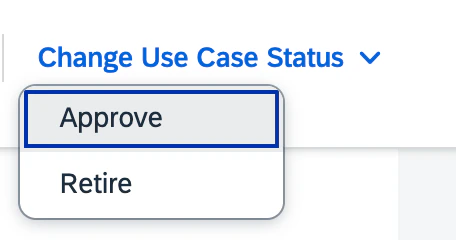
Status-Based Operations
Best Practices
Development Phase
Keep use cases in Draft status while configuring services, requirements, and
risks
Testing Phase
Move to Approval status to run initial qualification tests before going live
Production Phase
Activate use cases only when ready for continuous monitoring
Maintenance Phase
Use Inactive status for temporary suspension without losing configuration
Next Steps
Configuration
Configure services, features, and risk assessments
Initial Qualification
Run initial qualification tests