> ## Documentation Index
> Fetch the complete documentation index at: https://docs.p36-csq.com/llms.txt
> Use this file to discover all available pages before exploring further.
# Reporting
> Generate comprehensive reports for compliance and documentation
## Overview
In the reporting section, you can create reports of your use case configuration, risk assessment, and continuous qualification. The reporting feature provides comprehensive documentation for compliance, audit, and analysis purposes.
 Reports can be customized based on your use case status and specific
requirements, with support for various report types and formats.
## Report Management Interface
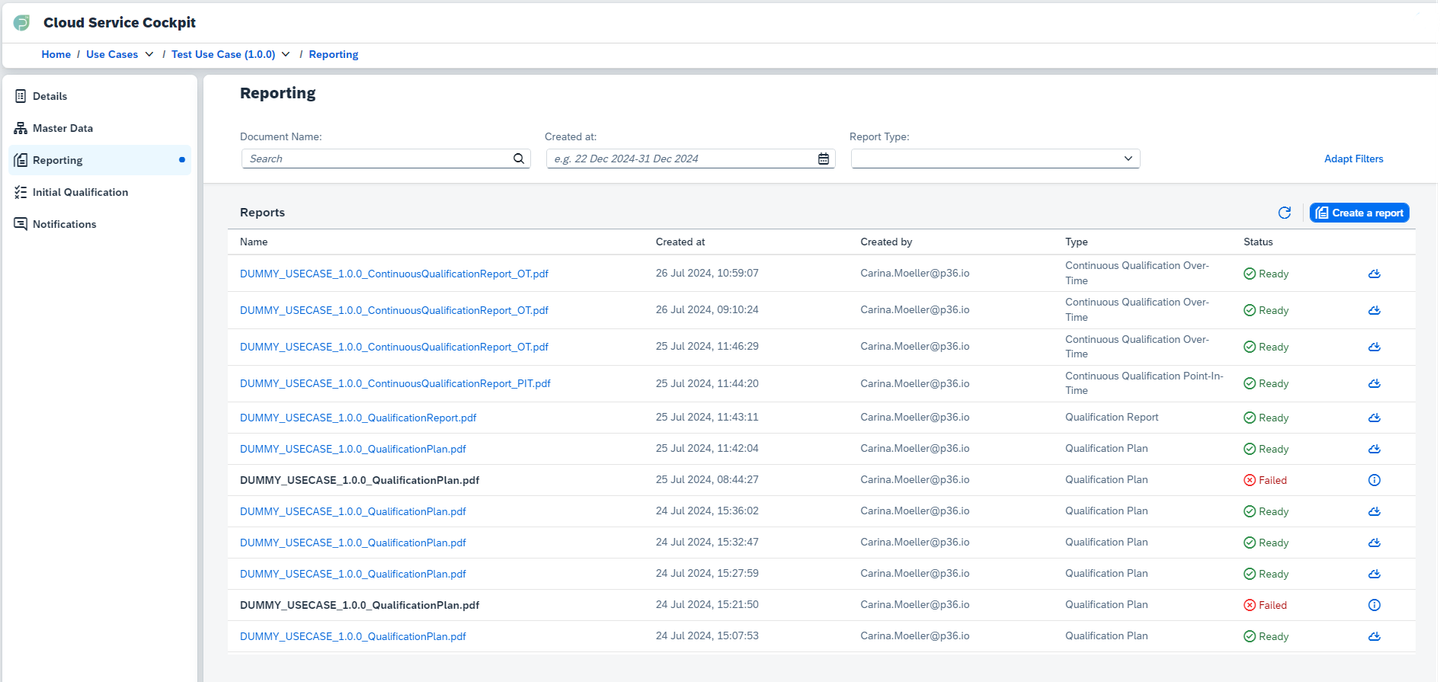
You'll find a table view of all generated reports with detailed information:
### Report Information Displayed
* **Name**: Custom name assigned to the report
* **Created at**: When the report was generated
* **Created By**: User who initiated the report generation
* **Type**: Type of report (Assessment, Initial Qualification, etc.)
* **Status**: Current report generation status
* **Actions**: Download, Delete
Browse all generated reports in a comprehensive table view
Download completed reports directly from the list view
Monitor report generation progress and status
## Report Types
The available report types depend on your use case status and configuration:
### Assessment Reports
**Availability:** Can be created in all use case statuses
**Content:**
* Use case configuration overview
* Service assignments and details
* Risk assessment results
* Requirement compliance status
* Master data structure
**Use Cases:**
* Compliance documentation
* Internal audits
* Configuration reviews
* Stakeholder reporting
Assessment documents provide a snapshot of your use case configuration and
are useful for documentation and compliance purposes.
### Initial Qualification Reports
**Availability:** Only available if an Initial Qualification Run has been executed
**Requirements:**
* Use case must be in "Approval" status or higher
* Initial qualification must have been completed
**Content:**
* Initial test execution results
* Service qualification status
* Baseline performance metrics
* Initial risk assessment outcomes
* Point-in-time service validation
**Options:**
* ✅ **Include Evidences**: Add all test execution evidence and logs
**Use Cases:**
* Pre-production validation
* Service readiness confirmation
* Initial compliance verification
### Real-Time Status Reports
**Availability:** Only available when continuous qualification is running
**Requirements:**
* Use case must be in "Active" status
* Continuous qualification must be operational
**Configuration:**
* **Key Date Selection**: Choose specific date and time using Date-and-Time-Picker
* **Include Evidences**: Optional inclusion of test execution evidence
**Content:**
* Service status at specified time
* Active deviations at that moment
* Risk status snapshot
* Performance metrics for the selected timeframe
**Use Cases:**
* Incident investigation
* Compliance audits
* Status verification at specific times
### Historical Analysis Reports
**Availability:** Only available when continuous qualification is running
**Requirements:**
* Use case must be in "Active" status
* Sufficient historical data available
**Configuration:**
* **Timeframe Selection**: Define start and end dates using Date-and-Time-Picker
* **Include Evidences**: Optional inclusion of all test execution evidence
**Content:**
* Trend analysis over selected period
* Deviation patterns and frequency
* Service performance trends
* Risk evolution over time
* Qualification success rates
**Use Cases:**
* Performance trend analysis
* Long-term compliance reporting
* Service improvement planning
* Historical audit trails
## Manual Report Generation Process
Navigate to the use case and select "Reporting" from the left menu
Click the "Create a Report" button on the right side of the screen
Choose the appropriate report type based on your use case status and needs
Set report-specific options like timeframes, evidence inclusion, and naming
Review your configuration and submit the report generation request
## Scheduled Report Generation Process
Only Over-Time Reports can be scheduled for automatic generation at regular intervals. This allows you to maintain up-to-date documentation without manual intervention.
## Report Status Management
### Status Types
| Status | Description | Available Actions |
| -------------- | ----------------------------- | ------------------- |
| **Generating** | Report is being created | Monitor progress |
| **Ready** | Report completed successfully | View, Download |
| **Failed** | Generation encountered errors | View details, Retry |
### Handling Failed Reports
If a report generation fails:
Click the error icon to view specific failure information
Verify that all settings were correct and data is available
Attempt to regenerate the report after addressing issues
If issues persist, contact support with error details
## Accessing and Downloading Reports
### Viewing Reports
Find the completed report in the reports list (status: "Ready")
Click on the report entry to open it in a new window
Browse through the report sections and data
Use the 'Download' button in the bottom right corner
Generating reports may take some time depending on the complexity and amount
of evidences included. Please be patient while the system processes your
request.
### Direct Download
For quick access:
* Use the download icon directly from the reports list
* Reports are typically available in PDF format
## Search and Filter Options
### Available Filters:
* **Document Name**: Filter by report name
* **Created at**: Filter by date of report creation
## Custom Report Templates
Your p36 Solution Consultant will support you with the setup of custom
reporting templates tailored to your specific documentation requirements.
### Template Features:
* **Custom Branding**: Include your organization's logos and styling
* **Specific Sections**: Focus on particular aspects of qualification
* **Compliance Formats**: Meet specific regulatory or industry standards
* **Data Selection**: Include only relevant data points for your needs
## Best Practices
Schedule regular report generation to maintain up-to-date documentation
Use consistent naming conventions for easy report identification
Develop a strategy for archiving and managing historical reports
## Compliance and Audit Support
Reports generated by the CSQ Platform are designed to support:
* **Regulatory Compliance**: Meet industry-specific reporting requirements
* **Internal Audits**: Provide comprehensive documentation for internal reviews
* **External Audits**: Supply detailed evidence for external auditors
* **Continuous Improvement**: Track performance trends and improvement areas
## Next Steps
Configure notifications to complement your reports
Run initial qualification to enable qualification reports
Reports can be customized based on your use case status and specific
requirements, with support for various report types and formats.
## Report Management Interface
You'll find a table view of all generated reports with detailed information:
### Report Information Displayed
* **Name**: Custom name assigned to the report
* **Created at**: When the report was generated
* **Created By**: User who initiated the report generation
* **Type**: Type of report (Assessment, Initial Qualification, etc.)
* **Status**: Current report generation status
* **Actions**: Download, Delete
Browse all generated reports in a comprehensive table view
Download completed reports directly from the list view
Monitor report generation progress and status
## Report Types
The available report types depend on your use case status and configuration:
### Assessment Reports
**Availability:** Can be created in all use case statuses
**Content:**
* Use case configuration overview
* Service assignments and details
* Risk assessment results
* Requirement compliance status
* Master data structure
**Use Cases:**
* Compliance documentation
* Internal audits
* Configuration reviews
* Stakeholder reporting
Assessment documents provide a snapshot of your use case configuration and
are useful for documentation and compliance purposes.
### Initial Qualification Reports
**Availability:** Only available if an Initial Qualification Run has been executed
**Requirements:**
* Use case must be in "Approval" status or higher
* Initial qualification must have been completed
**Content:**
* Initial test execution results
* Service qualification status
* Baseline performance metrics
* Initial risk assessment outcomes
* Point-in-time service validation
**Options:**
* ✅ **Include Evidences**: Add all test execution evidence and logs
**Use Cases:**
* Pre-production validation
* Service readiness confirmation
* Initial compliance verification
### Real-Time Status Reports
**Availability:** Only available when continuous qualification is running
**Requirements:**
* Use case must be in "Active" status
* Continuous qualification must be operational
**Configuration:**
* **Key Date Selection**: Choose specific date and time using Date-and-Time-Picker
* **Include Evidences**: Optional inclusion of test execution evidence
**Content:**
* Service status at specified time
* Active deviations at that moment
* Risk status snapshot
* Performance metrics for the selected timeframe
**Use Cases:**
* Incident investigation
* Compliance audits
* Status verification at specific times
### Historical Analysis Reports
**Availability:** Only available when continuous qualification is running
**Requirements:**
* Use case must be in "Active" status
* Sufficient historical data available
**Configuration:**
* **Timeframe Selection**: Define start and end dates using Date-and-Time-Picker
* **Include Evidences**: Optional inclusion of all test execution evidence
**Content:**
* Trend analysis over selected period
* Deviation patterns and frequency
* Service performance trends
* Risk evolution over time
* Qualification success rates
**Use Cases:**
* Performance trend analysis
* Long-term compliance reporting
* Service improvement planning
* Historical audit trails
## Manual Report Generation Process
Navigate to the use case and select "Reporting" from the left menu
Click the "Create a Report" button on the right side of the screen
Choose the appropriate report type based on your use case status and needs
Set report-specific options like timeframes, evidence inclusion, and naming
Review your configuration and submit the report generation request
## Scheduled Report Generation Process
Only Over-Time Reports can be scheduled for automatic generation at regular intervals. This allows you to maintain up-to-date documentation without manual intervention.
## Report Status Management
### Status Types
| Status | Description | Available Actions |
| -------------- | ----------------------------- | ------------------- |
| **Generating** | Report is being created | Monitor progress |
| **Ready** | Report completed successfully | View, Download |
| **Failed** | Generation encountered errors | View details, Retry |
### Handling Failed Reports
If a report generation fails:
Click the error icon to view specific failure information
Verify that all settings were correct and data is available
Attempt to regenerate the report after addressing issues
If issues persist, contact support with error details
## Accessing and Downloading Reports
### Viewing Reports
Find the completed report in the reports list (status: "Ready")
Click on the report entry to open it in a new window
Browse through the report sections and data
Use the 'Download' button in the bottom right corner
Generating reports may take some time depending on the complexity and amount
of evidences included. Please be patient while the system processes your
request.
### Direct Download
For quick access:
* Use the download icon directly from the reports list
* Reports are typically available in PDF format
## Search and Filter Options
### Available Filters:
* **Document Name**: Filter by report name
* **Created at**: Filter by date of report creation
## Custom Report Templates
Your p36 Solution Consultant will support you with the setup of custom
reporting templates tailored to your specific documentation requirements.
### Template Features:
* **Custom Branding**: Include your organization's logos and styling
* **Specific Sections**: Focus on particular aspects of qualification
* **Compliance Formats**: Meet specific regulatory or industry standards
* **Data Selection**: Include only relevant data points for your needs
## Best Practices
Schedule regular report generation to maintain up-to-date documentation
Use consistent naming conventions for easy report identification
Develop a strategy for archiving and managing historical reports
## Compliance and Audit Support
Reports generated by the CSQ Platform are designed to support:
* **Regulatory Compliance**: Meet industry-specific reporting requirements
* **Internal Audits**: Provide comprehensive documentation for internal reviews
* **External Audits**: Supply detailed evidence for external auditors
* **Continuous Improvement**: Track performance trends and improvement areas
## Next Steps
Configure notifications to complement your reports
Run initial qualification to enable qualification reports