> ## Documentation Index
> Fetch the complete documentation index at: https://docs.p36-csq.com/llms.txt
> Use this file to discover all available pages before exploring further.
# Overview
> Manage and configure your cloud service use cases
## What is a Use Case?
Use cases are flexible amalgamations of diverse cloud services utilized across various contexts, allowing you to group related services together for comprehensive qualification management.
## Use Case Management Interface
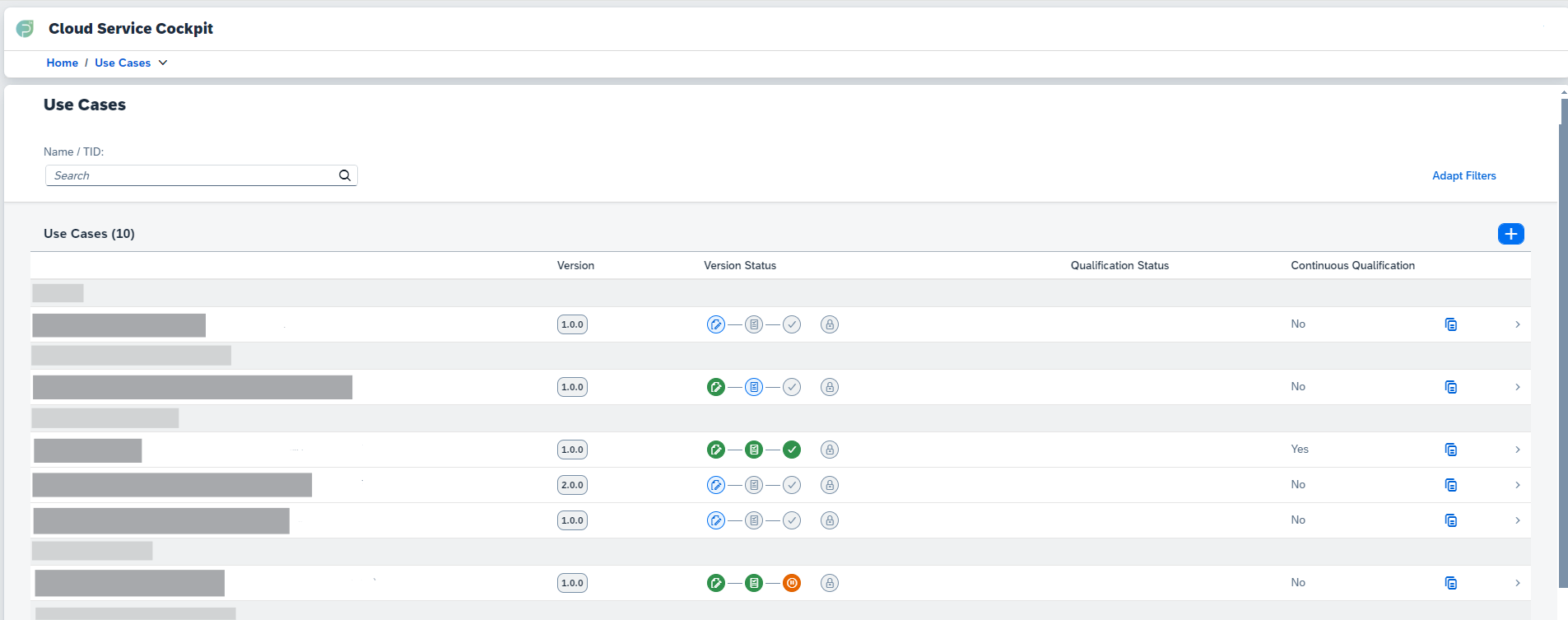 As an Admin user or Use Case Designer, you can open the Use Case configuration component. Here, you will first find a list of all use cases with their main information:
### Main Information Displayed
* **Use Case Name**: Identifier for the use case
* **Version**: Version number of the use case
* **Version Status**: Status of the current version
* **Continuous Qualification**: Whether continuous monitoring is active
* **Copy Icon**: Quick duplication option
## Search and Filter Options
Use the search box at the top of the screen to search for a specific use
case by name or TID (Technical Identifier)
Click "Adapt Filters" at the top right to open filtering options and refine
the view of all use cases
## Creating New Use Cases
Click the plus button (➕) at the top right of the list of use cases to
start creating a new use case
Fill in the required fields such as Use Case Name, TID (Technical
Identifier), and Version
Click the "Create" button to finalize the creation of the new use case
## Use Case Menu Structure
When you select a specific use case, you'll find the following menu items on the left-hand side:
**Use Case Details**: View and edit the details of the use case, including
status management [Learn more about Use Case Details →](/use-cases/details)
{" "}
**Configuration**: View and Edit services and features related to the use case
[Learn more about Configuration →](/use-cases/configuration)
{" "}
**Reporting**: Create and manage reports for your use cases [Learn more about
Reporting →](/use-cases/reporting)
{" "}
**Initial Qualification**: Trigger and monitor initial qualification processes
[Learn more about Initial Qualification →](/use-cases/initial-qualification)
**Notifications**: Configure custom notifications for deviations and events
[Learn more about Notifications →](/use-cases/notifications)
## Use Case Lifecycle
Understanding the different states a use case can have is crucial for effective management:
```mermaid theme={null}
graph LR
A[Draft] --> B[Approval]
B --> C[Active]
C --> D[Inactive]
D --> C
A --> E[Retired]
B --> E
C --> E
D --> E
B --> A
```
Once a use case reaches the "Retired" status, it cannot be changed,
reactivated, or returned to any previous status.
## Quick Actions
Start a new use case configuration from scratch
Duplicate an existing use case with all its configurations in a new version
## Next Steps
Learn about managing use case details and status
Understand services, features and their configurations within a use case
As an Admin user or Use Case Designer, you can open the Use Case configuration component. Here, you will first find a list of all use cases with their main information:
### Main Information Displayed
* **Use Case Name**: Identifier for the use case
* **Version**: Version number of the use case
* **Version Status**: Status of the current version
* **Continuous Qualification**: Whether continuous monitoring is active
* **Copy Icon**: Quick duplication option
## Search and Filter Options
Use the search box at the top of the screen to search for a specific use
case by name or TID (Technical Identifier)
Click "Adapt Filters" at the top right to open filtering options and refine
the view of all use cases
## Creating New Use Cases
Click the plus button (➕) at the top right of the list of use cases to
start creating a new use case
Fill in the required fields such as Use Case Name, TID (Technical
Identifier), and Version
Click the "Create" button to finalize the creation of the new use case
## Use Case Menu Structure
When you select a specific use case, you'll find the following menu items on the left-hand side:
**Use Case Details**: View and edit the details of the use case, including
status management [Learn more about Use Case Details →](/use-cases/details)
{" "}
**Configuration**: View and Edit services and features related to the use case
[Learn more about Configuration →](/use-cases/configuration)
{" "}
**Reporting**: Create and manage reports for your use cases [Learn more about
Reporting →](/use-cases/reporting)
{" "}
**Initial Qualification**: Trigger and monitor initial qualification processes
[Learn more about Initial Qualification →](/use-cases/initial-qualification)
**Notifications**: Configure custom notifications for deviations and events
[Learn more about Notifications →](/use-cases/notifications)
## Use Case Lifecycle
Understanding the different states a use case can have is crucial for effective management:
```mermaid theme={null}
graph LR
A[Draft] --> B[Approval]
B --> C[Active]
C --> D[Inactive]
D --> C
A --> E[Retired]
B --> E
C --> E
D --> E
B --> A
```
Once a use case reaches the "Retired" status, it cannot be changed,
reactivated, or returned to any previous status.
## Quick Actions
Start a new use case configuration from scratch
Duplicate an existing use case with all its configurations in a new version
## Next Steps
Learn about managing use case details and status
Understand services, features and their configurations within a use case