> ## Documentation Index
> Fetch the complete documentation index at: https://docs.p36-csq.com/llms.txt
> Use this file to discover all available pages before exploring further.
# Details
> Manage use case details and status transitions
## Use Case Detail Page
When a use case has been selected, you are first taken to the Use Case Detail page. Here, you can not only view the details of the use case, but also edit them if necessary. The status can also be changed here according to the current use case status.
The status always refers to the corresponding use case and controls what
actions and operations are available.
## Use Case Status Lifecycle
Understanding the different statuses a use case can have is crucial for proper management:
 ### Draft Status
**Permissions:**
* ✅ Use case can be changed
* ✅ Create, modify, or delete use case services, requirements, risks, and assignments
* ✅ Can be set to Approval status
* ✅ Can be retired directly from here
* ❌ No initial qualification runs allowed
* ❌ No continuous qualification allowed
This is the initial status for new use cases where all configuration work
takes place.
**Available Transitions:**
* → Approval
* → Retired
### Approval Status
**Permissions:**
* ✅ Initial qualification runs are possible
* ✅ Can revert to Draft status for changes
* ✅ Can be activated (moved to Active status)
* ✅ Can be retired
* ❌ No further changes allowed
* ❌ Continuous qualification still not performed
Once in Approval status, direct modifications are not allowed. You must
revert to Draft to make changes to requirements.
**Available Transitions:**
* → Active
* → Draft (for modifications)
* → Retired
### Active Status
**Permissions:**
* ✅ Continuous qualification automatically starts
* ✅ Can be deactivated (moved to Inactive status)
* ✅ Can be retired
* ❌ No changes allowed
* ❌ Initial qualification runs no longer possible
* ❌ Cannot revert to previous statuses (Draft or Approval)
This is the operational status where continuous monitoring and qualification
take place.
**Available Transitions:**
* → Inactive
* → Retired
### Inactive Status
**Permissions:**
* ✅ Can be reactivated to become Active again
* ✅ Can be retired
* ❌ Use case is no longer active
* ❌ Continuous qualification is stopped
* ❌ Unsubscribed from all used services
* ❌ No changes allowed
* ❌ Cannot return to earlier statuses (Draft or Approval)
This status temporarily suspends all qualification activities while
preserving the use case configuration.
**Available Transitions:**
* → Active
* → Retired
### Retired Status
**Final Status — No Changes Possible:**
* ❌ Cannot be changed, reactivated, or returned to any previous status
* ❌ Unsubscribed from all services
* ❌ Continuous qualification no longer performed
The Retired status is final and signifies the end of the use case
lifecycle. This action cannot be undone.
**Available Transitions:**
* None (final status)
## Status Transition Diagram
```mermaid theme={null}
stateDiagram-v2
[*] --> Draft
Draft --> Approval: Submit for approval
Draft --> Retired: Direct retirement
Approval --> Active: Activate use case
Approval --> Draft: Return for modifications
Approval --> Retired: Retire use case
Active --> Inactive: Deactivate
Active --> Retired: Retire use case
Inactive --> Active: Reactivate
Inactive --> Retired: Retire use case
Retired --> [*]: Final state
```
## Managing Use Case Status
Navigate to the use case and select "Details" from the left menu
Check the current status and understand what
[transitions](/use-cases/details#status-based-operations) are available
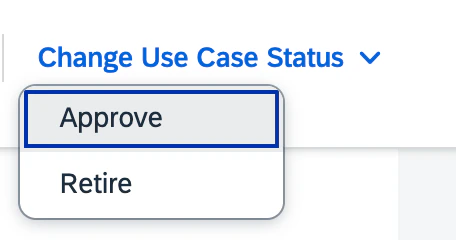
Use the "Change Use Case Status" button to update the status
### Draft Status
**Permissions:**
* ✅ Use case can be changed
* ✅ Create, modify, or delete use case services, requirements, risks, and assignments
* ✅ Can be set to Approval status
* ✅ Can be retired directly from here
* ❌ No initial qualification runs allowed
* ❌ No continuous qualification allowed
This is the initial status for new use cases where all configuration work
takes place.
**Available Transitions:**
* → Approval
* → Retired
### Approval Status
**Permissions:**
* ✅ Initial qualification runs are possible
* ✅ Can revert to Draft status for changes
* ✅ Can be activated (moved to Active status)
* ✅ Can be retired
* ❌ No further changes allowed
* ❌ Continuous qualification still not performed
Once in Approval status, direct modifications are not allowed. You must
revert to Draft to make changes to requirements.
**Available Transitions:**
* → Active
* → Draft (for modifications)
* → Retired
### Active Status
**Permissions:**
* ✅ Continuous qualification automatically starts
* ✅ Can be deactivated (moved to Inactive status)
* ✅ Can be retired
* ❌ No changes allowed
* ❌ Initial qualification runs no longer possible
* ❌ Cannot revert to previous statuses (Draft or Approval)
This is the operational status where continuous monitoring and qualification
take place.
**Available Transitions:**
* → Inactive
* → Retired
### Inactive Status
**Permissions:**
* ✅ Can be reactivated to become Active again
* ✅ Can be retired
* ❌ Use case is no longer active
* ❌ Continuous qualification is stopped
* ❌ Unsubscribed from all used services
* ❌ No changes allowed
* ❌ Cannot return to earlier statuses (Draft or Approval)
This status temporarily suspends all qualification activities while
preserving the use case configuration.
**Available Transitions:**
* → Active
* → Retired
### Retired Status
**Final Status — No Changes Possible:**
* ❌ Cannot be changed, reactivated, or returned to any previous status
* ❌ Unsubscribed from all services
* ❌ Continuous qualification no longer performed
The Retired status is final and signifies the end of the use case
lifecycle. This action cannot be undone.
**Available Transitions:**
* None (final status)
## Status Transition Diagram
```mermaid theme={null}
stateDiagram-v2
[*] --> Draft
Draft --> Approval: Submit for approval
Draft --> Retired: Direct retirement
Approval --> Active: Activate use case
Approval --> Draft: Return for modifications
Approval --> Retired: Retire use case
Active --> Inactive: Deactivate
Active --> Retired: Retire use case
Inactive --> Active: Reactivate
Inactive --> Retired: Retire use case
Retired --> [*]: Final state
```
## Managing Use Case Status
Navigate to the use case and select "Details" from the left menu
Check the current status and understand what
[transitions](/use-cases/details#status-based-operations) are available
Use the "Change Use Case Status" button to update the status
 ## Status-Based Operations
| Operation | Draft | Approval | Active | Inactive | Retired |
| ------------------------------ | ----- | -------- | ------ | -------- | ------- |
| Edit Configuration | ✅ | ❌ | ❌ | ❌ | ❌ |
| Initial Qualification | ❌ | ✅ | ❌ | ❌ | ❌ |
| Start Continuous Qualification | ❌ | ❌ | ✅ | ❌ | ❌ |
| Generate Reports | ✅ | ✅ | ✅ | ✅ | ❌ |
## Best Practices
Keep use cases in Draft status while configuring services, requirements, and
risks
Move to Approval status to run initial qualification tests before going live
Activate use cases only when ready for continuous monitoring
Use Inactive status for temporary suspension without losing configuration
## Next Steps
Configure services, features, and risk assessments
Run initial qualification tests
## Status-Based Operations
| Operation | Draft | Approval | Active | Inactive | Retired |
| ------------------------------ | ----- | -------- | ------ | -------- | ------- |
| Edit Configuration | ✅ | ❌ | ❌ | ❌ | ❌ |
| Initial Qualification | ❌ | ✅ | ❌ | ❌ | ❌ |
| Start Continuous Qualification | ❌ | ❌ | ✅ | ❌ | ❌ |
| Generate Reports | ✅ | ✅ | ✅ | ✅ | ❌ |
## Best Practices
Keep use cases in Draft status while configuring services, requirements, and
risks
Move to Approval status to run initial qualification tests before going live
Activate use cases only when ready for continuous monitoring
Use Inactive status for temporary suspension without losing configuration
## Next Steps
Configure services, features, and risk assessments
Run initial qualification tests