> ## Documentation Index
> Fetch the complete documentation index at: https://docs.p36-csq.com/llms.txt
> Use this file to discover all available pages before exploring further.
# Configuration
> Manage services, features and risk assessments in your use cases
## Overview
In the Configuration area, you can view the services added to the use case, along with the underlying features and their risk assessment. As an Admin user or Use Case Designer, you can edit them, assign new services to the use case, or delete services that are no longer relevant.
The tree structure provides a hierarchical view: **Use Case** → **Services** →
**Features**
## Configuration Structure
```mermaid theme={null}
flowchart TD
UC[Use Case]
UC --> S1[Service 1]
UC --> S2[Service 2]
S1 --> F11[Feature 1.1]
S1 --> F12[Feature 1.2]
S2 --> F21[Feature 2.1]
```
## Managing Services
### Adding a Service
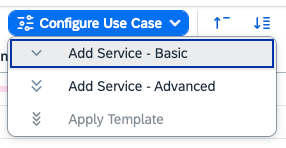
Services can be added to your use case using one of the following methods:
* **Basic Wizard**: Select from a predefined list of available services. No guided configuration is required.
* **Advanced Wizard**: Configure a new service and its assigned features through a guided wizard.
* **Apply Template**: Use your templates, created on platform level, to apply a predefined set of services and features to your use case.
Each of the above options can be accessed via the **Configure Use Case** button in the top right corner of the configuration table.
 To add a Service to your use case, you must be in **Draft** status.
#### Basic Wizard
Click the **Configure Use Case** button and select **Add Service - Basic**
from the dropdown.
Choose a service from the predefined list of available services.
Specify the intended use of the service, which will form the basis for its
risk assessment. This can be provided later if not immediately available.
However, the immediate activation of the use case will not be possible
without this information.
Choose the general impact of the service on your use case, which will
influence the risk assessment.
Click **Create** to include the service in your use case.
The Basic Wizard will not assign an Instance to the Service. Without an
Instance, the service cannot be qualified as Features cannot be assigned to
it. You can assign a Testing Instance later in the service details. Learn more
about [Assigning Instances](/use-cases/configuration#assigning-instances).
#### Advanced Wizard (Recommended)
Click the **Configure Use Case** button and select **Add Service -
Advanced** from the dropdown.
Choose a service from the predefined list of available services.
Specify the intended use of the service, which will form the basis for
its risk assessment. This can be provided later if not immediately
available. However, the immediate activation of the use case will not be
possible without this information.
Choose the general impact of the service on your use case, which will
influence the risk assessment.
Choose the test instance or data center(s) the service will be qualified
in.
Click **Next Step** to continue to the feature selection.
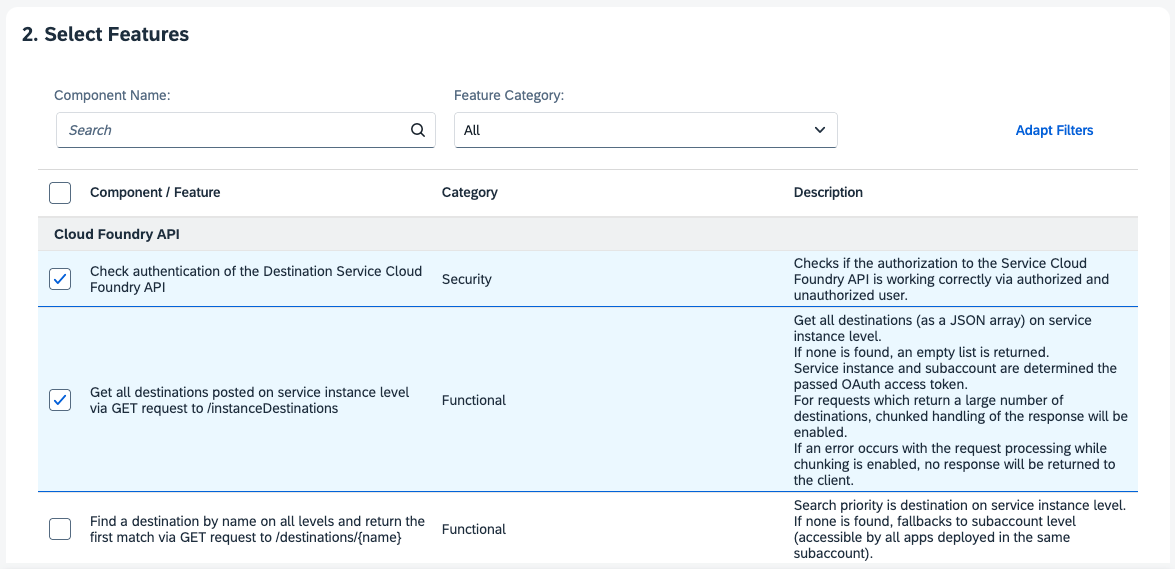
Choose the features that are relevant for the service in the scope of
your use case. For more information on features, see the [Service
Features](/use-cases/configuration#service-features) section.
To add a Service to your use case, you must be in **Draft** status.
#### Basic Wizard
Click the **Configure Use Case** button and select **Add Service - Basic**
from the dropdown.
Choose a service from the predefined list of available services.
Specify the intended use of the service, which will form the basis for its
risk assessment. This can be provided later if not immediately available.
However, the immediate activation of the use case will not be possible
without this information.
Choose the general impact of the service on your use case, which will
influence the risk assessment.
Click **Create** to include the service in your use case.
The Basic Wizard will not assign an Instance to the Service. Without an
Instance, the service cannot be qualified as Features cannot be assigned to
it. You can assign a Testing Instance later in the service details. Learn more
about [Assigning Instances](/use-cases/configuration#assigning-instances).
#### Advanced Wizard (Recommended)
Click the **Configure Use Case** button and select **Add Service -
Advanced** from the dropdown.
Choose a service from the predefined list of available services.
Specify the intended use of the service, which will form the basis for
its risk assessment. This can be provided later if not immediately
available. However, the immediate activation of the use case will not be
possible without this information.
Choose the general impact of the service on your use case, which will
influence the risk assessment.
Choose the test instance or data center(s) the service will be qualified
in.
Click **Next Step** to continue to the feature selection.
Choose the features that are relevant for the service in the scope of
your use case. For more information on features, see the [Service
Features](/use-cases/configuration#service-features) section.
 Click **Next Step** to proceed to the risk assessment.
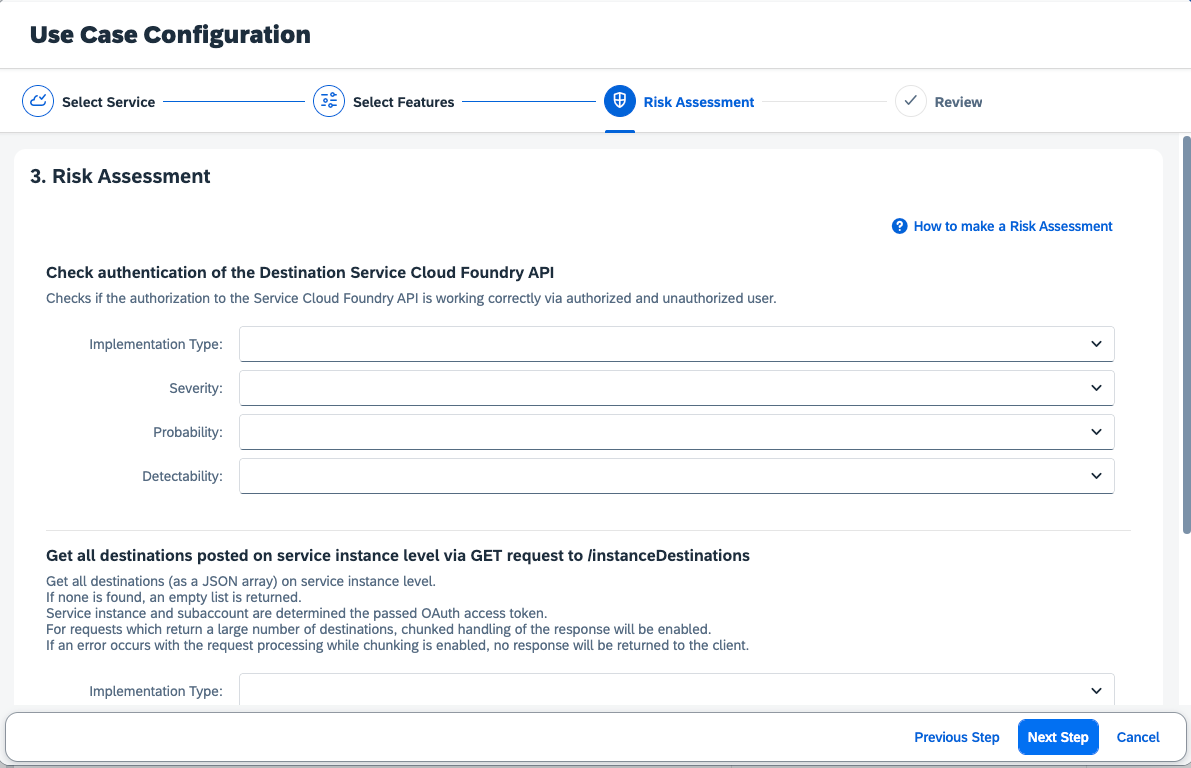
Perform the Risk Assessment for each selected feature by defining the
Implementation Type, Severity, Probability and Detectability. This can
be done later, but is required for the initial qualification. More
information on risk assessment can be found in the [Risk
Assessment](/features/risk-assessment) section.
Click **Next Step** to proceed to the risk assessment.
Perform the Risk Assessment for each selected feature by defining the
Implementation Type, Severity, Probability and Detectability. This can
be done later, but is required for the initial qualification. More
information on risk assessment can be found in the [Risk
Assessment](/features/risk-assessment) section.
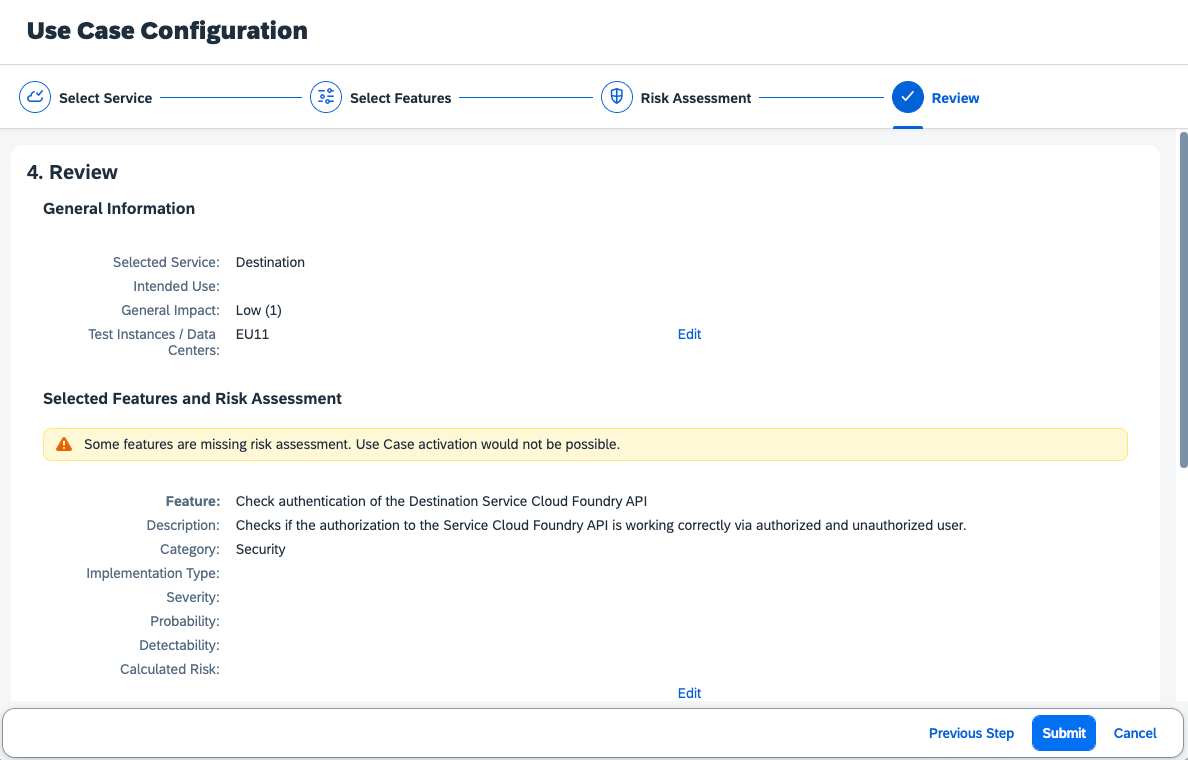
 Click **Next Step** to proceed to the Review tab.
Review the service and feature configuration, including the risk
assessment.
Click **Next Step** to proceed to the Review tab.
Review the service and feature configuration, including the risk
assessment.
 Click **Submit** to add the service to your use case.
#### Apply Template
## Service Features
Features are the building blocks of services, representing specific functionalities or capabilities. Each service can have multiple features, which can be configured and managed independently. Each Feature requires a risk assessment to define the risk level and mitigation strategies.
A Feature is tested by one or more test cases, which are executed during the
qualification process.
## Assigning Instances
Click on the service name in the configuration table to open its details.
Navigate to the **Assignments** tab.
Click the **Add Assignment** button to assign a testing instance or data
center to the service.
Select **Assign Instance** from the dropdown menu.
Choose the testing instance you want to assign to the service. This is
essential for qualifying the service and its features in the correct region.
## Status Restrictions
Master data modifications (adding/removing services, requirements, risks, or
features) are only possible when the use case is in **Draft** status.
| Status | Services | Requirements | Risks | Features |
| -------- | ----------------- | ----------------- | ----------------- | ----------------- |
| Draft | ✅ Add/Edit/Remove | ✅ Add/Edit/Remove | ✅ Add/Edit/Remove | ✅ Add/Edit/Remove |
| Approval | ❌ Read Only | ❌ Read Only | ❌ Read Only | ❌ Read Only |
| Active | ❌ Read Only | ❌ Read Only | ❌ Read Only | ❌ Read Only |
| Inactive | ❌ Read Only | ❌ Read Only | ❌ Read Only | ❌ Read Only |
| Retired | ❌ No Access | ❌ No Access | ❌ No Access | ❌ No Access |
## Next Steps
Run initial tests on your configured services
Learn more about risk assessment processes
Click **Submit** to add the service to your use case.
#### Apply Template
## Service Features
Features are the building blocks of services, representing specific functionalities or capabilities. Each service can have multiple features, which can be configured and managed independently. Each Feature requires a risk assessment to define the risk level and mitigation strategies.
A Feature is tested by one or more test cases, which are executed during the
qualification process.
## Assigning Instances
Click on the service name in the configuration table to open its details.
Navigate to the **Assignments** tab.
Click the **Add Assignment** button to assign a testing instance or data
center to the service.
Select **Assign Instance** from the dropdown menu.
Choose the testing instance you want to assign to the service. This is
essential for qualifying the service and its features in the correct region.
## Status Restrictions
Master data modifications (adding/removing services, requirements, risks, or
features) are only possible when the use case is in **Draft** status.
| Status | Services | Requirements | Risks | Features |
| -------- | ----------------- | ----------------- | ----------------- | ----------------- |
| Draft | ✅ Add/Edit/Remove | ✅ Add/Edit/Remove | ✅ Add/Edit/Remove | ✅ Add/Edit/Remove |
| Approval | ❌ Read Only | ❌ Read Only | ❌ Read Only | ❌ Read Only |
| Active | ❌ Read Only | ❌ Read Only | ❌ Read Only | ❌ Read Only |
| Inactive | ❌ Read Only | ❌ Read Only | ❌ Read Only | ❌ Read Only |
| Retired | ❌ No Access | ❌ No Access | ❌ No Access | ❌ No Access |
## Next Steps
Run initial tests on your configured services
Learn more about risk assessment processes